
How to Save Social Media Recipes
Save TikTok, Instagram, YouTube, and Pinterest recipes to a searchable library, then check missing quantities and creator links before you cook.
By Buttter ·
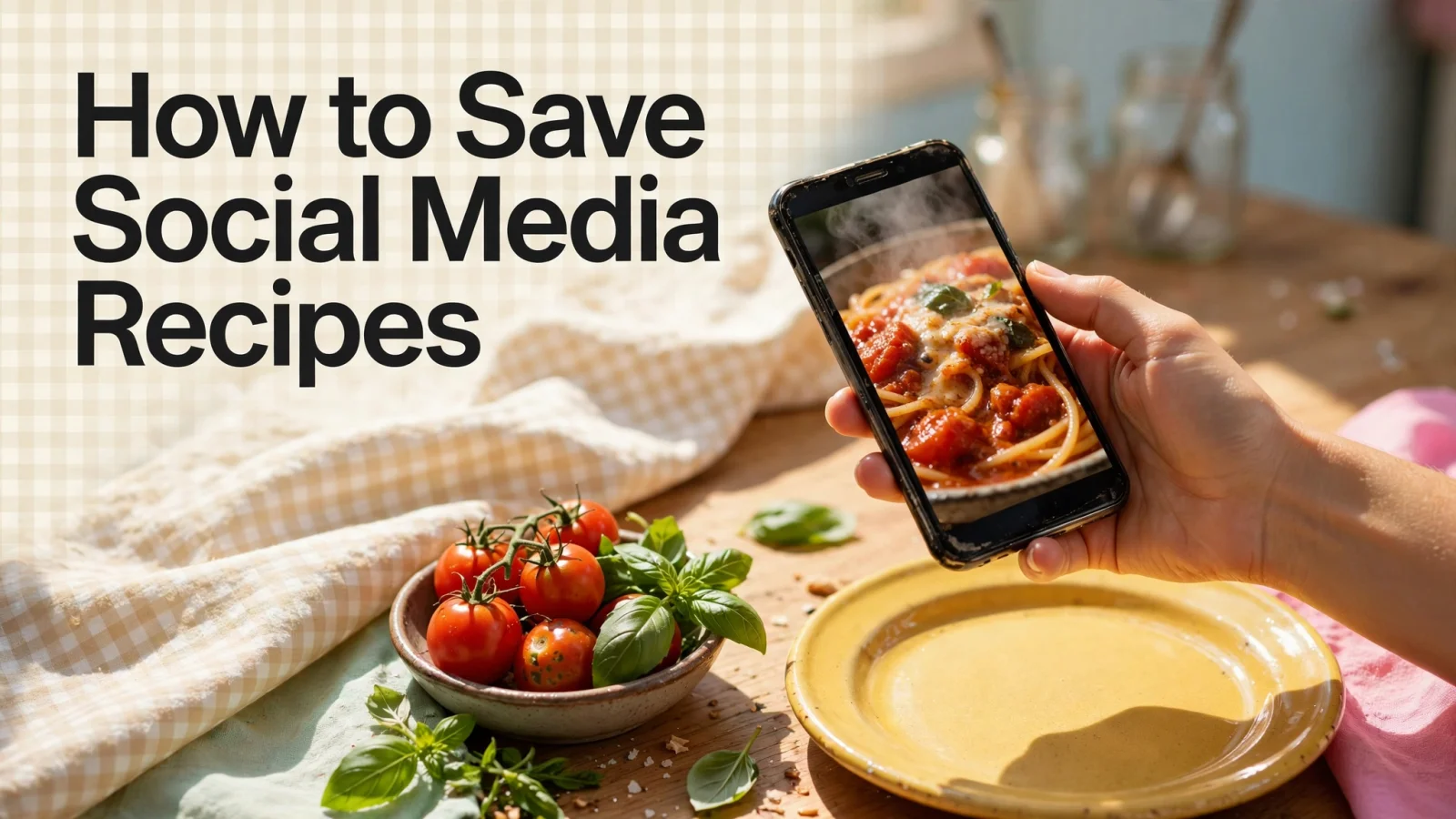
Saving a food post makes it easy to find the video again, but it doesn't give you a measured ingredient list or ordered steps. Trying to cook from a looping 60-second clip is frustrating: the screen dims, the creator speaks quickly, and you have to scrub back repeatedly to check how much flour went into the bowl. Buttter bridges that gap by turning supported social posts, including videos without written recipes, into structured recipes with ingredients and steps, then helping you find dishes from ingredients you already have.
YouTube and Pinterest both offer built-in tools for saving and organizing content. YouTube playlists collect videos, while the Watch Later playlist helps users find saved videos when they want to watch them. Meanwhile, Pinterest boards let users save and organize Pins, then find them later. For the next step, Buttter turns supported posts into structured recipes you can use at the stove, while platform bookmarks keep the original media easy to revisit.
Before You Start: Bookmarks Require Translation
A saved video becomes a practical dinner plan when you extract its instructions into a format you can follow at the stove. Open an accessible post or a linked recipe page, share or copy it into a dedicated recipe library, then review the resulting card.
We use Buttter as the primary example for this workflow. The app accepts supported social links or iOS share-sheet content and organizes those imports into searchable cookbooks. It translates the visual or spoken content of a social post into a structured format, allowing you to save social media recipes for long-term use.
Before migrating a backlog of saved videos, check your hardware setup. The app requires an iPhone or an iPad running iOS 18 or later, as no Android or web version exists. Adjusting expectations regarding what the tool can access saves time. The crawler follows the links provided, which means it only reads public content. Private or friends-only posts block external access and will fail to import.

Step 1: Share Each Post Into a Recipe Library
Moving a post into a library relies on the iOS share sheet or the device clipboard. Start by opening an individual saved post in its original app. Tap the share icon, choose the destination app in the iOS share sheet, or select the copy link option and paste the URL manually. Button labels and placements change frequently as platforms update their interfaces, but the underlying action of passing a specific URL remains stable. Opening each item from the platform's saved area before sharing it keeps the batch organized.
TikTok
The platform hosts a mix of fast-paced cooking videos and static photo carousels. Open the specific video or photo post showing the meal, tap the share arrow pointing right, and use the share sheet to send it to the library.
Even without a written caption, the app can parse spoken audio and visual cues to create a recipe draft from a cooking video, turning the creator's narration into ingredients and steps.
Share the link rather than downloading the media file. Creators control their own video-download settings and frequently disable direct downloads to protect their content, yet link sharing typically remains active. A downloaded video sitting in a camera roll strips away the metadata the library needs to process the text.
A typical saved folder contains Reels, multi-image carousels, and single-photo posts. Open the item, locate the paper airplane icon, and select the copy link function so the library can process the visual and textual data to build the card.
Creators often use Instagram as a promotional tool for their websites, posting an edited Reel and mentioning that the exact measurements are in their bio or on their blog. When a post points to an external site, save the recipe from that linked Instagram source rather than the teaser video to pull verified, formatted data. If the instructions sit buried in the comments section, the import process attempts to extract them, but linking directly to the source blog yields a cleaner result.
YouTube
Long-form vlogs and short-form vertical clips both contain usable cooking instructions. Share the specific video or Short through the iOS share sheet, as sharing a channel URL or a playlist link prevents the parser from finding a direct path to a single piece of media.
A creator spending twenty minutes walking through a complicated baking process generates extensive dialogue. The app filters the spoken audio to isolate the cooking steps, turning a conversational video into a written draft. Passing the exact video URL ensures the system targets the right segment of content.
A Pin functions differently from a standard social media post, often acting as a visual bookmark pointing to a different website. A Pin might link to a food blogger's site, play a short video snippet, or display a graphic of a recipe card.
Share one Pin at a time through the share sheet, because importing a whole board at once remains unsupported. The system evaluates the destination of the Pin. If the Pin redirects to a detailed recipe page, the library pulls the text from that destination. Evaluating each Pin individually ensures the resulting card reflects the instructions rather than the cover image.
Step 2: Check the Recipe Against Its Source
Treat an imported social media post as a working draft. The transcription process relies on the clarity of the original creator, so developing a post-import review habit prevents missing ingredients from ruining dinner.
After the import, compare the creator's name or handle with the original post. If the recipe card includes a tappable source URL, keep a copy in the notes too. Product behavior can change, and the saved URL gives you another route back to the source.
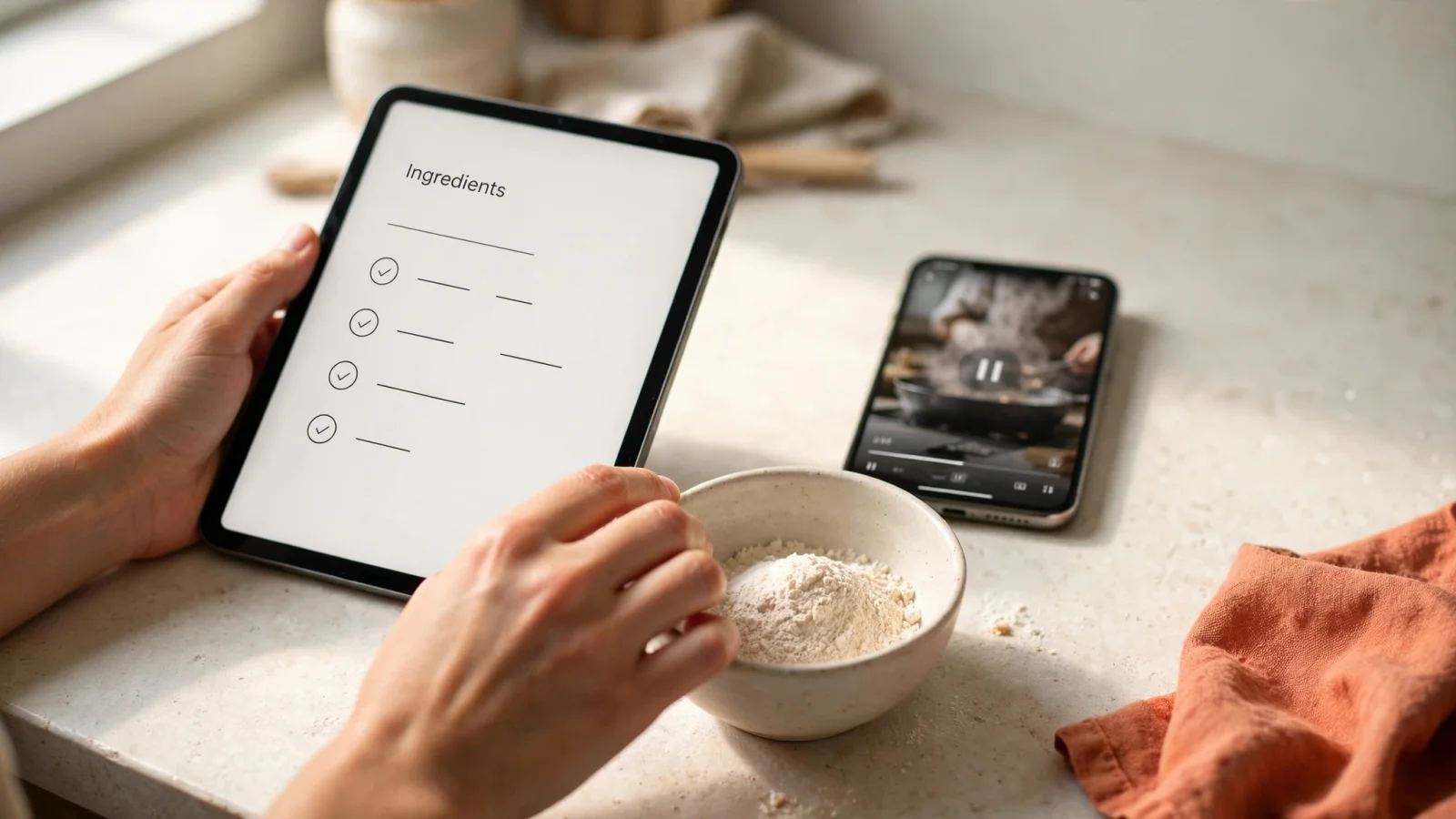
Compare every ingredient amount and unit of measurement with the original caption, the spoken audio, or the linked recipe page. This step separates creator-stated quantities from software estimates. A creator cooking a casual weeknight dinner might say to use a splash of milk or a handful of spinach, omitting the spice measurements entirely. The app estimates those missing amounts to provide a complete, workable list.
Mark an amount as estimated or unstated instead of presenting it as an exact measurement provided by the creator. If the app fills in one teaspoon of salt based on typical ratios, but the video shows the creator heavily salting the pan, the written number is an educated guess. Distinguishing between exact numbers and estimates protects the final dish.
Check the method against the media carefully by verifying the step order, the oven temperatures, and the cooking times. Creators frequently speak numbers quickly or overlay them as fast-moving text. A creator stating a temperature of 350 degrees might fail to specify Celsius or Fahrenheit. A quick visual review of the original video can help confirm whether they're using a standard home oven or specialized equipment, which gives you context for checking that the forty-minute bake time transferred accurately to the structured steps.
Review the total yield or serving size. A video showing a massive pot of chili intended to feed a crowd might neglect to mention it serves twelve in the caption. Adjusting the baseline serving size on the new card ensures that future automatic scaling works from the correct starting point. If the math starts from an incorrect assumption, doubling the recipe later produces strange results.
Keep personal modifications entirely separate from the creator's baseline instructions. Testing a dish might reveal it needs extra garlic or less cooking time. Put "I added more lemon juice" or "amount not stated in original" in a dedicated notes section, because mixing adjustments into the main ingredient list makes it difficult to remember what the creator originally intended.
Step 3: Make the Recipe Findable at Dinner Time
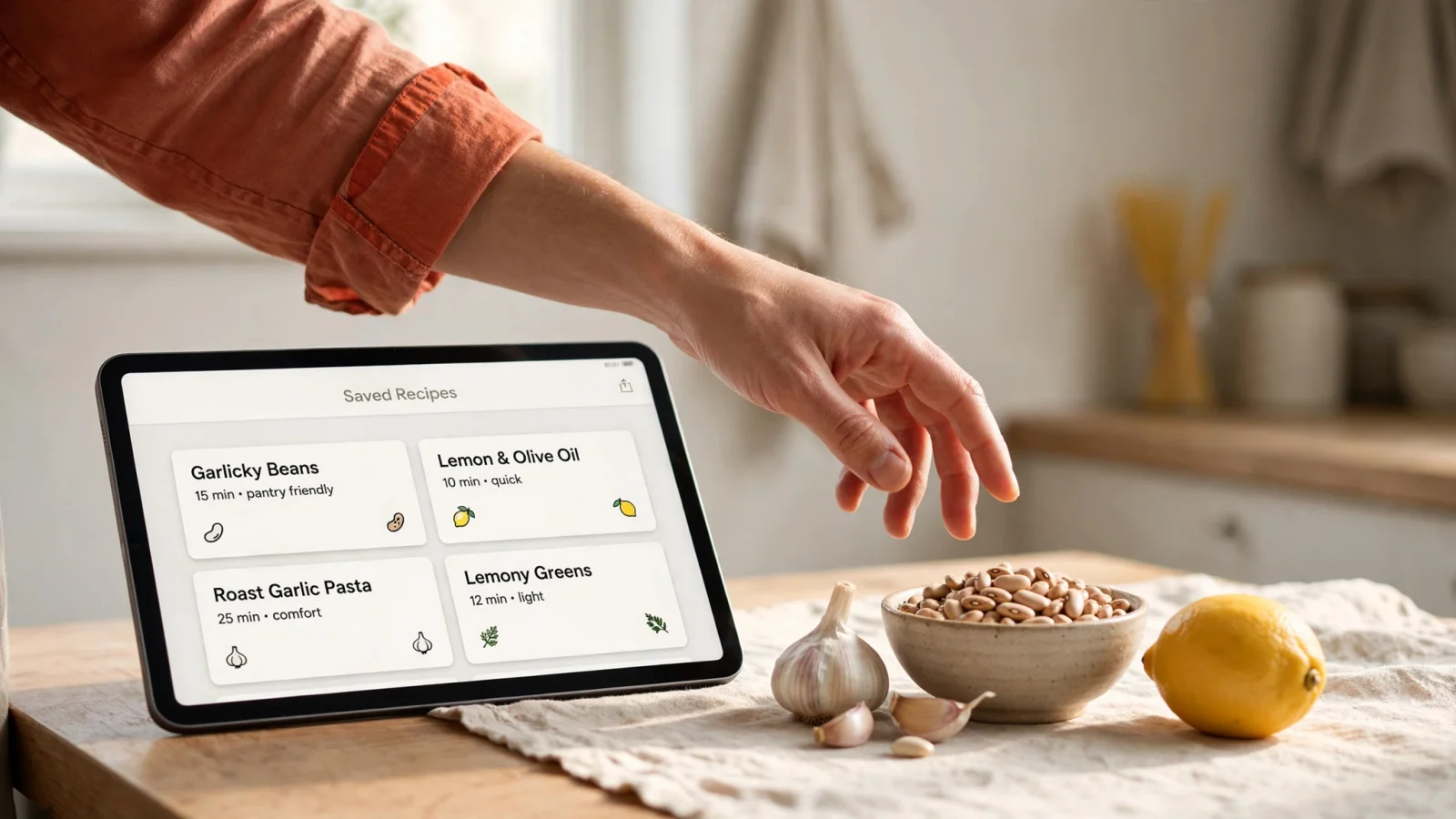
With Buttter, a structured library helps when it's time to decide what to eat. Scrolling through hundreds of saved videos across four different apps takes time and rarely results in a fast decision. A centralized collection allows meal planning based on current pantry inventory.
When you're deciding what to cook with what's in the fridge, search your saved cookbook by ingredient. If you need to use chicken thighs and broccoli tonight, typing those two ingredients into the search bar retrieves an easy weeknight dinner saved three months ago. The transition from scattered bookmarks to a searchable database eliminates the friction of meal planning.
Adapting a reviewed recipe to current needs takes only a few taps, as the interface allows adjustments to the total servings. The software recalculates the quantities for a larger dinner party or a solo meal. Doubling fractions mentally while managing hot pans leads to measuring errors, so letting the system handle the math keeps the ratios accurate.
The app displays automatic nutrition information based on the ingredients it processed. Treat these numbers as helpful estimates rather than verified clinical measurements, especially if the original creator used vague quantities. The data provides a broad understanding of the meal's profile without requiring manual entry into a separate tracking tool.
Use the step-by-step cook mode to follow the instructions. This mode keeps the screen awake and presents one action at a time. It removes the clutter of the full ingredient list while work happens at the counter, and tapping forward after completing each task eliminates the need to search for a place in a dense block of text.
Send the missing ingredients directly to a preferred task manager. The library hands off selected items to Apple Reminders, Things 3, or Todoist. Checking off the items already owned leaves only what needs to be purchased, and tapping the export button populates the grocery list. This sequence moves the recipe from a saved idea to a concrete plan of action before leaving for the store.
If an Import Fails, Keep the Original Source
The extraction process relies on open access and clear data, meaning it will not work perfectly for every post attempted. Understanding the common failure modes helps manage the exceptions without losing the meal idea.
Private or friends-only posts block the crawler from reading the content. Sharing a link from a locked account prevents the system from seeing past the login wall to extract the text, causing the import to fail silently or return an error. The same limitation applies to deleted posts, geographically restricted videos, or content temporarily hidden by the platform. The tool processes only what a standard, unauthenticated web visitor sees.
When a direct share fails, look for an alternative public route. Creators cross-post their content frequently. If a locked Instagram Reel fails, check if the creator published the same video publicly on their YouTube channel. If they maintain a dedicated website, search their public blog for the dish, as processing a standard webpage yields better results than attempting to bypass social media privacy settings.
If a Pin or a post points to a complete recipe elsewhere, use that external page for the written quantities. Do not rely on a short video snippet if the creator wrote a detailed, tested guide on their own domain. The external site provides a cleaner data source for the parser.
When no complete, public recipe is available, build the card manually while keeping the source link or a personal reference saved in the app. Record only the specific details verified by watching the video, and add the ingredients that are clearly recognizable. If the creator adds an unknown spice blend, leave that line blank or label it as an unknown variable. A blank measurement is safer than a bad guess that ruins the final plate.
Relying on screenshots acts as a manual fallback. If an import fails but the video displays a clear ingredient list at the end, take a screenshot on the device. The app brings recipe photos and screenshots together in personal cookbooks alongside the structured cards. This keeps the visual reference in the same searchable location as automated imports.
Evaluate the tool based on your cooking habits. Buttter is free to download from the App Store, though some advanced AI features require an optional subscription. Start with one accessible post, share it, review the imported card, and try the step-by-step cook mode. See whether the structured format helps in your kitchen before moving your full backlog of saved posts.
Stop cooking from looping videos and buried comments. Download Buttter for free on your iPhone or iPad, share your saved posts into a structured library, and turn your social media bookmarks into recipes you can follow.
